> ## Documentation Index
> Fetch the complete documentation index at: https://docs-staging-fix-details-to-accordion-universal-components.mintlify.site/llms.txt
> Use this file to discover all available pages before exploring further.

> Learn how to configure a progressive profile form using Forms for Actions

# Use Cases: Configure a progressive profile form using Forms

<Card title="Before you start">
  1. Create a [Machine-to-Machine Application](/docs/get-started/auth0-overview/create-applications/machine-to-machine-apps) with the following scopes enabled:

  * `read:users`
  * `update:users`
  * `create:users`
  * `read:users_app_metadata`
  * `update:users_app_metadata`
  * `create:users_app_metadata`

  2. Add a [Vault connection](/docs/customize/forms/vault) using the M2M application credentials.
</Card>

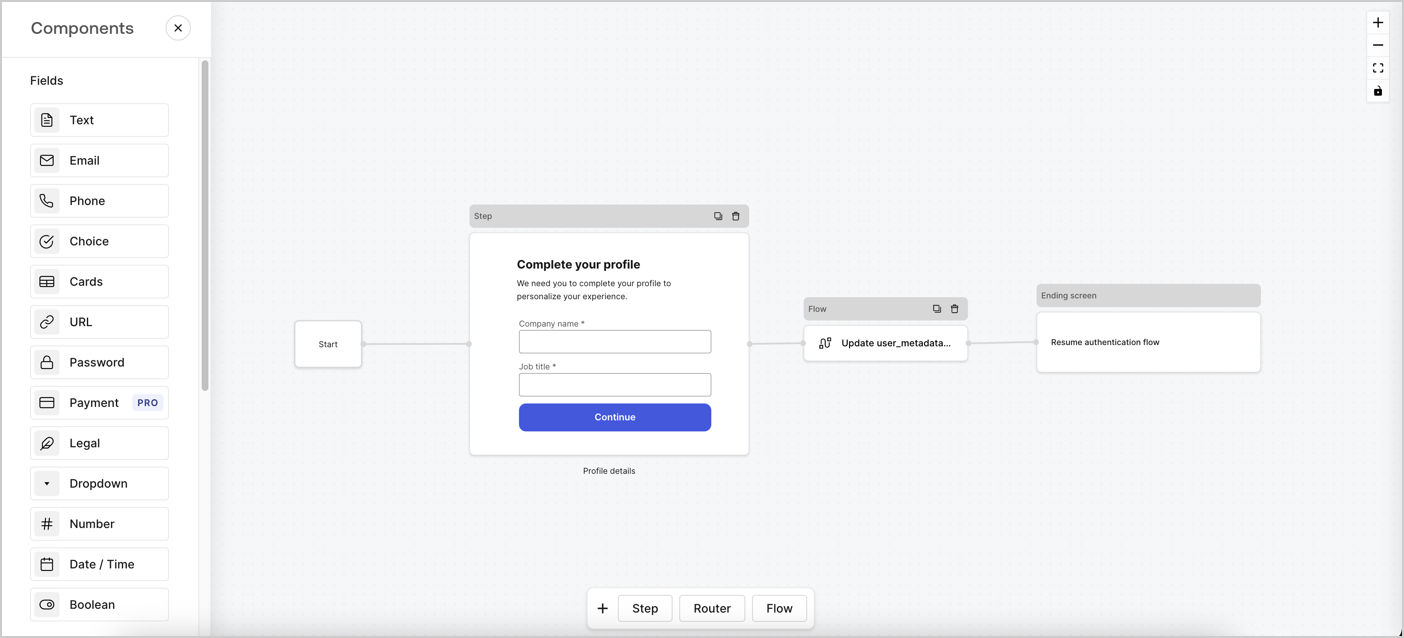
Forms for Actions allows you to create progressive profiling flows to decide when to prompt users to collect missing information, such as company name and job title, and store them as `user_metadata` attributes.
<Frame>
  <img src="https://mintcdn.com/docs-staging-fix-details-to-accordion-universal-components/8S_oOIFNz4helbdR/docs/images/cdy7uua7fh8z/xUx9YmnHvnAqL19JvNtNP/60dae88f893d4ebe8e3523421e960596/Progressive-profle-overview.png?fit=max&auto=format&n=8S_oOIFNz4helbdR&q=85&s=128cd9e0219ce65ced2f76a5fa11ca85" alt="Dashboard > Actions > Forms > Form" data-og-width="1404" width="1404" data-og-height="638" height="638" data-path="docs/images/cdy7uua7fh8z/xUx9YmnHvnAqL19JvNtNP/60dae88f893d4ebe8e3523421e960596/Progressive-profle-overview.png" data-optimize="true" data-opv="3" srcset="https://mintcdn.com/docs-staging-fix-details-to-accordion-universal-components/8S_oOIFNz4helbdR/docs/images/cdy7uua7fh8z/xUx9YmnHvnAqL19JvNtNP/60dae88f893d4ebe8e3523421e960596/Progressive-profle-overview.png?w=280&fit=max&auto=format&n=8S_oOIFNz4helbdR&q=85&s=09baf34d08a98106139696b7a26489fb 280w, https://mintcdn.com/docs-staging-fix-details-to-accordion-universal-components/8S_oOIFNz4helbdR/docs/images/cdy7uua7fh8z/xUx9YmnHvnAqL19JvNtNP/60dae88f893d4ebe8e3523421e960596/Progressive-profle-overview.png?w=560&fit=max&auto=format&n=8S_oOIFNz4helbdR&q=85&s=d1c60e12307bab507024ef5d9a23ab91 560w, https://mintcdn.com/docs-staging-fix-details-to-accordion-universal-components/8S_oOIFNz4helbdR/docs/images/cdy7uua7fh8z/xUx9YmnHvnAqL19JvNtNP/60dae88f893d4ebe8e3523421e960596/Progressive-profle-overview.png?w=840&fit=max&auto=format&n=8S_oOIFNz4helbdR&q=85&s=5a1802a35fefd2390bfd0ef49e8a0143 840w, https://mintcdn.com/docs-staging-fix-details-to-accordion-universal-components/8S_oOIFNz4helbdR/docs/images/cdy7uua7fh8z/xUx9YmnHvnAqL19JvNtNP/60dae88f893d4ebe8e3523421e960596/Progressive-profle-overview.png?w=1100&fit=max&auto=format&n=8S_oOIFNz4helbdR&q=85&s=158e082bbadfabd408068840df0c94d7 1100w, https://mintcdn.com/docs-staging-fix-details-to-accordion-universal-components/8S_oOIFNz4helbdR/docs/images/cdy7uua7fh8z/xUx9YmnHvnAqL19JvNtNP/60dae88f893d4ebe8e3523421e960596/Progressive-profle-overview.png?w=1650&fit=max&auto=format&n=8S_oOIFNz4helbdR&q=85&s=e0cc4be9faa7b062cecb284e4693d25d 1650w, https://mintcdn.com/docs-staging-fix-details-to-accordion-universal-components/8S_oOIFNz4helbdR/docs/images/cdy7uua7fh8z/xUx9YmnHvnAqL19JvNtNP/60dae88f893d4ebe8e3523421e960596/Progressive-profle-overview.png?w=2500&fit=max&auto=format&n=8S_oOIFNz4helbdR&q=85&s=5a65017e926c7aa7b6585b6c74053c28 2500w" />
</Frame>

The sections below outline how you can create a progressive profile form using nodes and flows, along with steps for adding your form to a [Post Login Action](/docs/customize/actions/explore-triggers/signup-and-login-triggers/login-trigger).

## Create a form from scratch

Follow these steps to create a form to gather information:

1. Open the Form editor by selecting **Auth0 Dashboard > Actions > Forms.**
2. Select **Create Form** > **Start from scratch**.

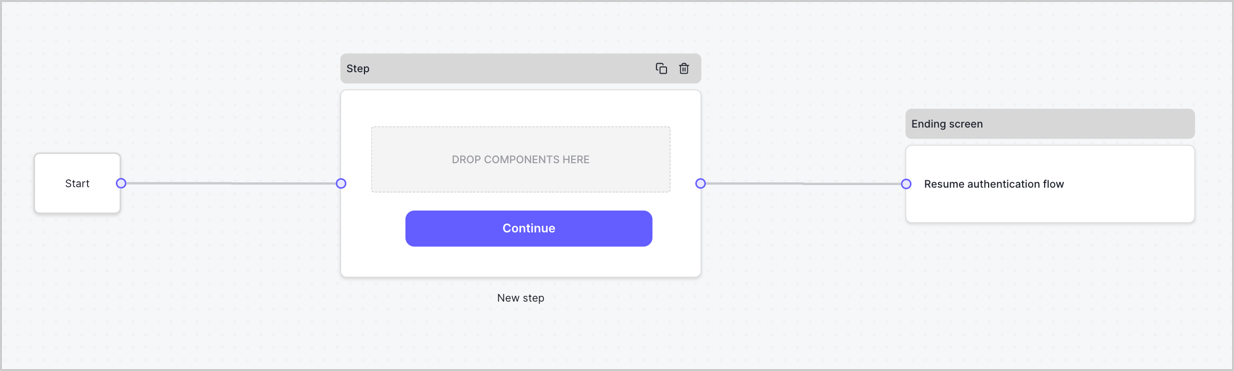
By default, a new form contains a Start node, a Step node, and an Ending screen node.
<Frame>
  <img src="https://mintcdn.com/docs-staging-fix-details-to-accordion-universal-components/IUh6-Vzwx_T82DPb/docs/images/cdy7uua7fh8z/2TZ9jSjgEcARFpULI6hz4R/a4319a1bd482f2ee5cc23100fdb2f42c/New-form-Forms-for-action-use-case.png?fit=max&auto=format&n=IUh6-Vzwx_T82DPb&q=85&s=8f8330fb247b78837bc801d3d540568e" alt="Dashboard > Forms > Use Cases > Form" data-og-width="1234" width="1234" data-og-height="371" height="371" data-path="docs/images/cdy7uua7fh8z/2TZ9jSjgEcARFpULI6hz4R/a4319a1bd482f2ee5cc23100fdb2f42c/New-form-Forms-for-action-use-case.png" data-optimize="true" data-opv="3" srcset="https://mintcdn.com/docs-staging-fix-details-to-accordion-universal-components/IUh6-Vzwx_T82DPb/docs/images/cdy7uua7fh8z/2TZ9jSjgEcARFpULI6hz4R/a4319a1bd482f2ee5cc23100fdb2f42c/New-form-Forms-for-action-use-case.png?w=280&fit=max&auto=format&n=IUh6-Vzwx_T82DPb&q=85&s=0b17a12406a94dc6479b026ffeaf3043 280w, https://mintcdn.com/docs-staging-fix-details-to-accordion-universal-components/IUh6-Vzwx_T82DPb/docs/images/cdy7uua7fh8z/2TZ9jSjgEcARFpULI6hz4R/a4319a1bd482f2ee5cc23100fdb2f42c/New-form-Forms-for-action-use-case.png?w=560&fit=max&auto=format&n=IUh6-Vzwx_T82DPb&q=85&s=39716ae0e62e22a4f0e29310a2260672 560w, https://mintcdn.com/docs-staging-fix-details-to-accordion-universal-components/IUh6-Vzwx_T82DPb/docs/images/cdy7uua7fh8z/2TZ9jSjgEcARFpULI6hz4R/a4319a1bd482f2ee5cc23100fdb2f42c/New-form-Forms-for-action-use-case.png?w=840&fit=max&auto=format&n=IUh6-Vzwx_T82DPb&q=85&s=308d6d37f17476174f919ad7539d3a8d 840w, https://mintcdn.com/docs-staging-fix-details-to-accordion-universal-components/IUh6-Vzwx_T82DPb/docs/images/cdy7uua7fh8z/2TZ9jSjgEcARFpULI6hz4R/a4319a1bd482f2ee5cc23100fdb2f42c/New-form-Forms-for-action-use-case.png?w=1100&fit=max&auto=format&n=IUh6-Vzwx_T82DPb&q=85&s=716e5dff33536600a007a0e1ab3a3196 1100w, https://mintcdn.com/docs-staging-fix-details-to-accordion-universal-components/IUh6-Vzwx_T82DPb/docs/images/cdy7uua7fh8z/2TZ9jSjgEcARFpULI6hz4R/a4319a1bd482f2ee5cc23100fdb2f42c/New-form-Forms-for-action-use-case.png?w=1650&fit=max&auto=format&n=IUh6-Vzwx_T82DPb&q=85&s=220ea4aea31b2a3a310921062f1fb48a 1650w, https://mintcdn.com/docs-staging-fix-details-to-accordion-universal-components/IUh6-Vzwx_T82DPb/docs/images/cdy7uua7fh8z/2TZ9jSjgEcARFpULI6hz4R/a4319a1bd482f2ee5cc23100fdb2f42c/New-form-Forms-for-action-use-case.png?w=2500&fit=max&auto=format&n=IUh6-Vzwx_T82DPb&q=85&s=ad25a18d2ac7f21bdd61fc4036da006f 2500w" />
</Frame>

### Configure the Step node

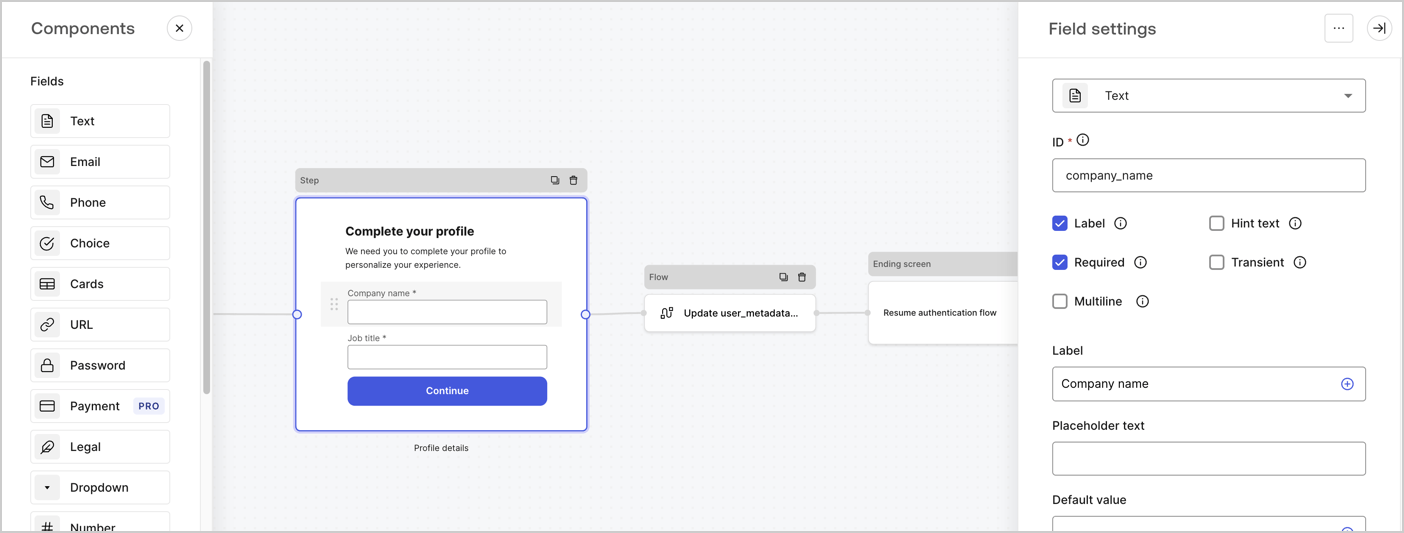
The Step node is the graphical interface visible to users. Add [Fields](/docs/customize/forms/nodes-and-components) to the Step node to collect the user's company name and job title values by following these steps:

1. Drag a **Rich text** field from the **Components menu** into the **Step** node.

   * **Rich text**: Enter a custom message.

     * **Example**: `Complete your profile! We need you to complete your profile to personalize your experience.`
   * Select **Save**.
2. Drag a **Text** field into the **Step** node.

   * **ID**: Enter `company_name`.
   * **Label**: Enable the checkbox.
   * **Label**: Enter `Company name`.
   * **Required**: Enable the checkbox.
   * Select **Save**.
3. Drag a **Text** field into the **Step** node.

   1. **ID**: Enter `job_title`.
   2. **Label**: Enter `Job title`.
   3. **Label**: Enable the checkbox.
   4. **Required**: Enable the checkbox.
   5. Select **Save**.
4. Select **Publish** to save.
<Frame>
  <img src="https://mintcdn.com/docs-staging-fix-details-to-accordion-universal-components/hBi-kIKnqSz3KDdt/docs/images/cdy7uua7fh8z/6H1lRzwKyYioQyQJ9MtIoM/aa248e92fc028a68a5b92ff361a11644/progressive-profile-step.png?fit=max&auto=format&n=hBi-kIKnqSz3KDdt&q=85&s=8411d360a5b717e4811789a705ee97a3" alt="Dashboard > Actions > Forms > Form > Step node" data-og-width="1404" width="1404" data-og-height="533" height="533" data-path="docs/images/cdy7uua7fh8z/6H1lRzwKyYioQyQJ9MtIoM/aa248e92fc028a68a5b92ff361a11644/progressive-profile-step.png" data-optimize="true" data-opv="3" srcset="https://mintcdn.com/docs-staging-fix-details-to-accordion-universal-components/hBi-kIKnqSz3KDdt/docs/images/cdy7uua7fh8z/6H1lRzwKyYioQyQJ9MtIoM/aa248e92fc028a68a5b92ff361a11644/progressive-profile-step.png?w=280&fit=max&auto=format&n=hBi-kIKnqSz3KDdt&q=85&s=6a9afc223747e1fec210a3d3435217fd 280w, https://mintcdn.com/docs-staging-fix-details-to-accordion-universal-components/hBi-kIKnqSz3KDdt/docs/images/cdy7uua7fh8z/6H1lRzwKyYioQyQJ9MtIoM/aa248e92fc028a68a5b92ff361a11644/progressive-profile-step.png?w=560&fit=max&auto=format&n=hBi-kIKnqSz3KDdt&q=85&s=491c3d3e26cc5b59b741ed862b9f0f7b 560w, https://mintcdn.com/docs-staging-fix-details-to-accordion-universal-components/hBi-kIKnqSz3KDdt/docs/images/cdy7uua7fh8z/6H1lRzwKyYioQyQJ9MtIoM/aa248e92fc028a68a5b92ff361a11644/progressive-profile-step.png?w=840&fit=max&auto=format&n=hBi-kIKnqSz3KDdt&q=85&s=66bc713ae9163e46c1b8412fd99adba9 840w, https://mintcdn.com/docs-staging-fix-details-to-accordion-universal-components/hBi-kIKnqSz3KDdt/docs/images/cdy7uua7fh8z/6H1lRzwKyYioQyQJ9MtIoM/aa248e92fc028a68a5b92ff361a11644/progressive-profile-step.png?w=1100&fit=max&auto=format&n=hBi-kIKnqSz3KDdt&q=85&s=bea1c9b61650a9664197b877cf7c9050 1100w, https://mintcdn.com/docs-staging-fix-details-to-accordion-universal-components/hBi-kIKnqSz3KDdt/docs/images/cdy7uua7fh8z/6H1lRzwKyYioQyQJ9MtIoM/aa248e92fc028a68a5b92ff361a11644/progressive-profile-step.png?w=1650&fit=max&auto=format&n=hBi-kIKnqSz3KDdt&q=85&s=01d26a5c8f546d97b3dcc7621ee90e19 1650w, https://mintcdn.com/docs-staging-fix-details-to-accordion-universal-components/hBi-kIKnqSz3KDdt/docs/images/cdy7uua7fh8z/6H1lRzwKyYioQyQJ9MtIoM/aa248e92fc028a68a5b92ff361a11644/progressive-profile-step.png?w=2500&fit=max&auto=format&n=hBi-kIKnqSz3KDdt&q=85&s=ba5deb3cd5f28fb0ce92f64595f474c1 2500w" />
</Frame>

### Configure the flow node

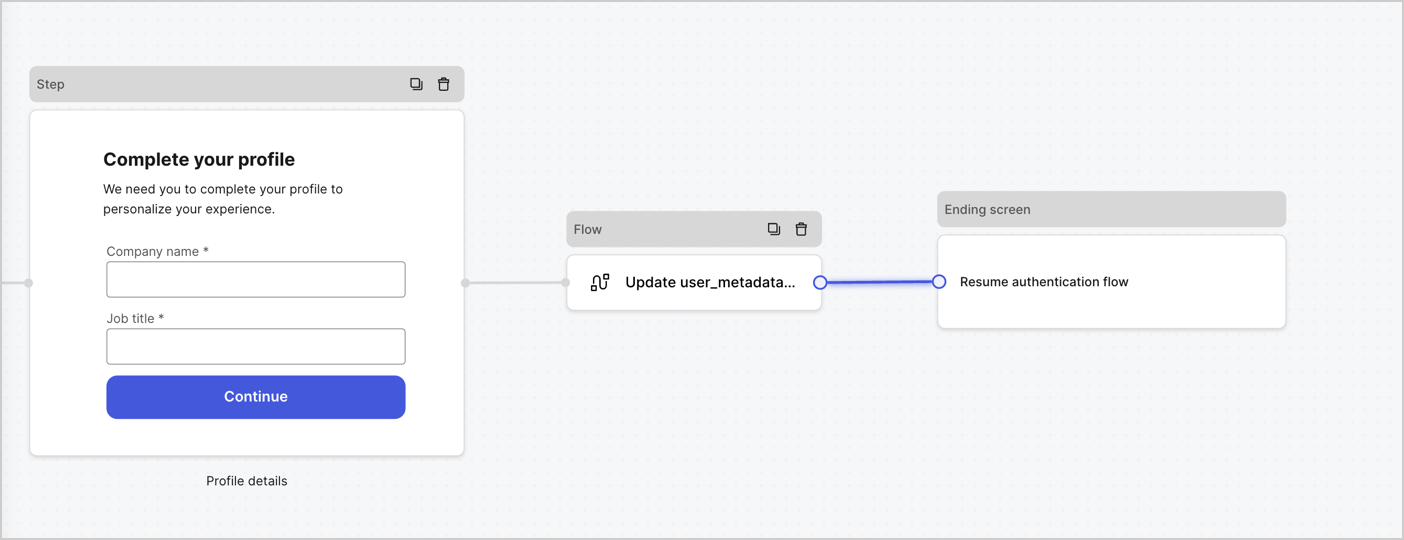
Add a **Flow** node after the **Step** node to update the `user_metadata` and resume the authentication flow by following these steps:

1. Select **Flow** from the bottom of the Form editor.
2. Remove the existing link between the **Step** and **Ending Screen** nodes.
3. Select the new **Flow** > **Click to add a flow** > **Create a new flow.**

   * Enter `Update user_metadata` in the **Name** field.
   * Select **Create**.
   * Select **Save**.
4. Link the **Flow** node to the **Step** and **Ending Screen** nodes as pictured below.
5. Select **Publish** to save.
<Frame>
  <img src="https://mintcdn.com/docs-staging-fix-details-to-accordion-universal-components/AcXYFIK_zxbPkulg/docs/images/cdy7uua7fh8z/5C91DaWn4LGtJT9BF87ssu/095171d0c452a287c44bfde12fd6d13f/link-nodes.png?fit=max&auto=format&n=AcXYFIK_zxbPkulg&q=85&s=defb9f451625e958d0b307735412f404" alt="Dashboard > Actions > Forms > Form" data-og-width="1404" width="1404" data-og-height="540" height="540" data-path="docs/images/cdy7uua7fh8z/5C91DaWn4LGtJT9BF87ssu/095171d0c452a287c44bfde12fd6d13f/link-nodes.png" data-optimize="true" data-opv="3" srcset="https://mintcdn.com/docs-staging-fix-details-to-accordion-universal-components/AcXYFIK_zxbPkulg/docs/images/cdy7uua7fh8z/5C91DaWn4LGtJT9BF87ssu/095171d0c452a287c44bfde12fd6d13f/link-nodes.png?w=280&fit=max&auto=format&n=AcXYFIK_zxbPkulg&q=85&s=d98a17a77e04a0a3e74847b1042e3e10 280w, https://mintcdn.com/docs-staging-fix-details-to-accordion-universal-components/AcXYFIK_zxbPkulg/docs/images/cdy7uua7fh8z/5C91DaWn4LGtJT9BF87ssu/095171d0c452a287c44bfde12fd6d13f/link-nodes.png?w=560&fit=max&auto=format&n=AcXYFIK_zxbPkulg&q=85&s=ab570de001b6475acbc2a11e46cdf07d 560w, https://mintcdn.com/docs-staging-fix-details-to-accordion-universal-components/AcXYFIK_zxbPkulg/docs/images/cdy7uua7fh8z/5C91DaWn4LGtJT9BF87ssu/095171d0c452a287c44bfde12fd6d13f/link-nodes.png?w=840&fit=max&auto=format&n=AcXYFIK_zxbPkulg&q=85&s=4f8348741ab0417d80dea234d1117cbc 840w, https://mintcdn.com/docs-staging-fix-details-to-accordion-universal-components/AcXYFIK_zxbPkulg/docs/images/cdy7uua7fh8z/5C91DaWn4LGtJT9BF87ssu/095171d0c452a287c44bfde12fd6d13f/link-nodes.png?w=1100&fit=max&auto=format&n=AcXYFIK_zxbPkulg&q=85&s=613537df3733732d0b4f798130896664 1100w, https://mintcdn.com/docs-staging-fix-details-to-accordion-universal-components/AcXYFIK_zxbPkulg/docs/images/cdy7uua7fh8z/5C91DaWn4LGtJT9BF87ssu/095171d0c452a287c44bfde12fd6d13f/link-nodes.png?w=1650&fit=max&auto=format&n=AcXYFIK_zxbPkulg&q=85&s=89aa31887117b3aab5eff5002ddc695c 1650w, https://mintcdn.com/docs-staging-fix-details-to-accordion-universal-components/AcXYFIK_zxbPkulg/docs/images/cdy7uua7fh8z/5C91DaWn4LGtJT9BF87ssu/095171d0c452a287c44bfde12fd6d13f/link-nodes.png?w=2500&fit=max&auto=format&n=AcXYFIK_zxbPkulg&q=85&s=dcf04f6e67df54713d2a3a570aa7aa4f 2500w" />
</Frame>

Add an Auth0 Update user action to the flow by following these steps:

1. Select the **Update user\_metadata** flow, then select the **Edit Flow** to open the Flow editor in a new tab.
2. Below the **Start** action, select the **+** icon to add an **Update user** action. Complete the fields below, then select **Save** to continue.

   * **Connection**: Select from the dropdown the Vault connection to your M2M application.

   * **User ID**: Enter `{{context.user.user_id}}`.

   * **Body**: Copy and paste the following code to update the user\_metadata with `job_title` and `company_name` properties.

     ```json lines theme={null}
     {
        "user_metadata": {
           "job_title": "{{fields.job_title}}",
           "company_name": "{{fields.company_name}}"
        }
     }
     ```

   * Select **Save**.
3. Select **Publish** to save.

<Frame>
  <img src="https://mintcdn.com/docs-staging-fix-details-to-accordion-universal-components/a22G9h46OmDWI4Qo/docs/images/cdy7uua7fh8z/65Jx4W5oIZJyyvA8z4HqIx/0661b1a8ca6361c54fc4fef07ba59f0b/update-user.png?fit=max&auto=format&n=a22G9h46OmDWI4Qo&q=85&s=1bfee1aed7b573dc9bba20a15421ff24" alt="Dashboard > Actions > Forms > Flows" data-og-width="1404" width="1404" data-og-height="244" height="244" data-path="docs/images/cdy7uua7fh8z/65Jx4W5oIZJyyvA8z4HqIx/0661b1a8ca6361c54fc4fef07ba59f0b/update-user.png" data-optimize="true" data-opv="3" srcset="https://mintcdn.com/docs-staging-fix-details-to-accordion-universal-components/a22G9h46OmDWI4Qo/docs/images/cdy7uua7fh8z/65Jx4W5oIZJyyvA8z4HqIx/0661b1a8ca6361c54fc4fef07ba59f0b/update-user.png?w=280&fit=max&auto=format&n=a22G9h46OmDWI4Qo&q=85&s=251feeeeaa52981f57903b632a71e705 280w, https://mintcdn.com/docs-staging-fix-details-to-accordion-universal-components/a22G9h46OmDWI4Qo/docs/images/cdy7uua7fh8z/65Jx4W5oIZJyyvA8z4HqIx/0661b1a8ca6361c54fc4fef07ba59f0b/update-user.png?w=560&fit=max&auto=format&n=a22G9h46OmDWI4Qo&q=85&s=2631a1543dd2d76178ca96a592d1f9a3 560w, https://mintcdn.com/docs-staging-fix-details-to-accordion-universal-components/a22G9h46OmDWI4Qo/docs/images/cdy7uua7fh8z/65Jx4W5oIZJyyvA8z4HqIx/0661b1a8ca6361c54fc4fef07ba59f0b/update-user.png?w=840&fit=max&auto=format&n=a22G9h46OmDWI4Qo&q=85&s=d9718b57dcb9e00b7a7aa61290e1c606 840w, https://mintcdn.com/docs-staging-fix-details-to-accordion-universal-components/a22G9h46OmDWI4Qo/docs/images/cdy7uua7fh8z/65Jx4W5oIZJyyvA8z4HqIx/0661b1a8ca6361c54fc4fef07ba59f0b/update-user.png?w=1100&fit=max&auto=format&n=a22G9h46OmDWI4Qo&q=85&s=bda970e826fc23e4499d60695f6e5577 1100w, https://mintcdn.com/docs-staging-fix-details-to-accordion-universal-components/a22G9h46OmDWI4Qo/docs/images/cdy7uua7fh8z/65Jx4W5oIZJyyvA8z4HqIx/0661b1a8ca6361c54fc4fef07ba59f0b/update-user.png?w=1650&fit=max&auto=format&n=a22G9h46OmDWI4Qo&q=85&s=aaf53cc7e47d914d6e21662cc0dcc090 1650w, https://mintcdn.com/docs-staging-fix-details-to-accordion-universal-components/a22G9h46OmDWI4Qo/docs/images/cdy7uua7fh8z/65Jx4W5oIZJyyvA8z4HqIx/0661b1a8ca6361c54fc4fef07ba59f0b/update-user.png?w=2500&fit=max&auto=format&n=a22G9h46OmDWI4Qo&q=85&s=d9e04ae448af60a86d4249019e19a9c1 2500w" />
</Frame>

### Retrieve the form render code

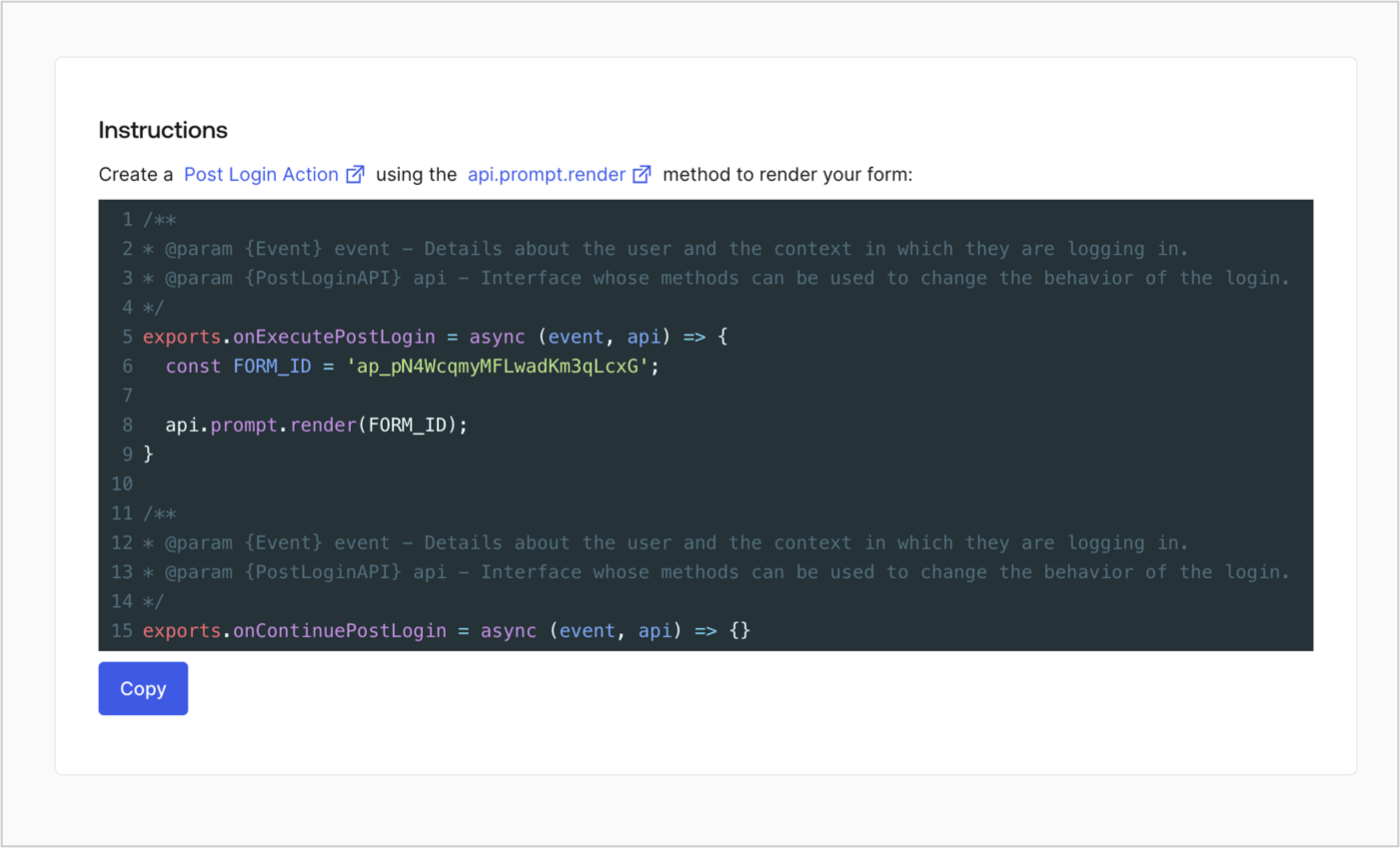
Retrieve the form render code to visually render the form with a custom Post Login Action by following these steps:

* From the Form editor, select **`<> Render`**.
* Select **Copy**.
<Frame>
  <img src="https://mintcdn.com/docs-staging-fix-details-to-accordion-universal-components/d6AiQOi9XnEZ--1T/docs/images/cdy7uua7fh8z/2EIUzc539sq9lwoTKbjoJv/496a864c0fc44a782c9cadca119dbfb0/embed.png?fit=max&auto=format&n=d6AiQOi9XnEZ--1T&q=85&s=0998e043e1e6c4faf44b7c72a9905974" alt="Dashboard > Actions > Forms > Form > Embed" data-og-width="1400" width="1400" data-og-height="848" height="848" data-path="docs/images/cdy7uua7fh8z/2EIUzc539sq9lwoTKbjoJv/496a864c0fc44a782c9cadca119dbfb0/embed.png" data-optimize="true" data-opv="3" srcset="https://mintcdn.com/docs-staging-fix-details-to-accordion-universal-components/d6AiQOi9XnEZ--1T/docs/images/cdy7uua7fh8z/2EIUzc539sq9lwoTKbjoJv/496a864c0fc44a782c9cadca119dbfb0/embed.png?w=280&fit=max&auto=format&n=d6AiQOi9XnEZ--1T&q=85&s=da1c092960c0a7ac7cae697cab9728fb 280w, https://mintcdn.com/docs-staging-fix-details-to-accordion-universal-components/d6AiQOi9XnEZ--1T/docs/images/cdy7uua7fh8z/2EIUzc539sq9lwoTKbjoJv/496a864c0fc44a782c9cadca119dbfb0/embed.png?w=560&fit=max&auto=format&n=d6AiQOi9XnEZ--1T&q=85&s=4587e881f3dba55fbc7816ae081e7dc9 560w, https://mintcdn.com/docs-staging-fix-details-to-accordion-universal-components/d6AiQOi9XnEZ--1T/docs/images/cdy7uua7fh8z/2EIUzc539sq9lwoTKbjoJv/496a864c0fc44a782c9cadca119dbfb0/embed.png?w=840&fit=max&auto=format&n=d6AiQOi9XnEZ--1T&q=85&s=f0a76669e3729b947e12f340f6084a1c 840w, https://mintcdn.com/docs-staging-fix-details-to-accordion-universal-components/d6AiQOi9XnEZ--1T/docs/images/cdy7uua7fh8z/2EIUzc539sq9lwoTKbjoJv/496a864c0fc44a782c9cadca119dbfb0/embed.png?w=1100&fit=max&auto=format&n=d6AiQOi9XnEZ--1T&q=85&s=a9a009bbf9b8290b6172c08b39988ef9 1100w, https://mintcdn.com/docs-staging-fix-details-to-accordion-universal-components/d6AiQOi9XnEZ--1T/docs/images/cdy7uua7fh8z/2EIUzc539sq9lwoTKbjoJv/496a864c0fc44a782c9cadca119dbfb0/embed.png?w=1650&fit=max&auto=format&n=d6AiQOi9XnEZ--1T&q=85&s=f9f76b2776f4451a4747c7710b1f974b 1650w, https://mintcdn.com/docs-staging-fix-details-to-accordion-universal-components/d6AiQOi9XnEZ--1T/docs/images/cdy7uua7fh8z/2EIUzc539sq9lwoTKbjoJv/496a864c0fc44a782c9cadca119dbfb0/embed.png?w=2500&fit=max&auto=format&n=d6AiQOi9XnEZ--1T&q=85&s=d9da404b7708e175dc328a6c751de4b0 2500w" />
</Frame>

## Create a Post Login Action

Create a post-login Action to render your form by following these steps:

1. Navigate to **Auth0 Dashboard > Actions > Flows > Login.**
2. Select the **+** icon and select **Build from scratch**:

   * **Name**: Enter `Render Progressive Profile Form`.
   * **Trigger**: Select `Login / Post Login`.
   * **Runtime**: Select the recommended version.
3. Select **Create**.

To configure the post-login Action:

1. Delete the existing code from the Code editor.
2. Paste the form embed code into the Code editor.
3. Edit the code to define the conditional logic that will render the form.

   ```javascript lines theme={null}
   /**
   * @param {Event} event - Details about the user and the context in which they are logging in.
   * @param {PostLoginAPI} api - Interface whose methods can be used to change the behavior of the login.
   */
   exports.onExecutePostLogin = async (event, api) => {
     const FORM_ID = 'REPLACE_WITH_YOUR_FORM_ID';

     if (
       event.stats.logins_count > 2 &&
       !event.user.user_metadata.company_name &&
       !event.user.user_metadata.job_title
     ) {
       api.prompt.render(FORM_ID);
     }
   }

   exports.onContinuePostLogin = async (event, api) => { }
   ```

   <Callout icon="file-lines" color="#0EA5E9" iconType="regular">
     The example code above will render the form when a user has a login count > 2 and is missing the user metadata company\_name and job\_title properties.
   </Callout>
4. Select **Deploy.**
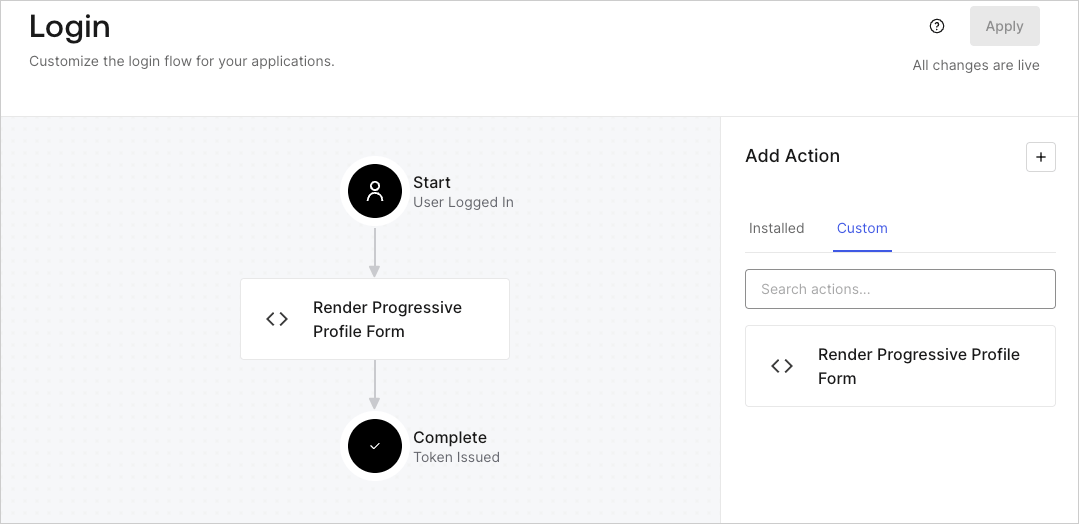
5. Drag and Drop the **Render Progressive Profile Form** Action to the **Login** flow.
   <Frame>
     <img src="https://mintcdn.com/docs-staging-fix-details-to-accordion-universal-components/Pp6KxkNv73XpUf57/docs/images/cdy7uua7fh8z/1QjjZdpTqTxx012UDN4xk9/99fba5ef4068a5688f1762eea7f42976/renderprogessiveprofile.png?fit=max&auto=format&n=Pp6KxkNv73XpUf57&q=85&s=cb110d188121396709d2dba4bb2f0e51" alt="Dashboard > Forms > Use Cases Progressive Profile Login Action" data-og-width="1079" width="1079" data-og-height="524" height="524" data-path="docs/images/cdy7uua7fh8z/1QjjZdpTqTxx012UDN4xk9/99fba5ef4068a5688f1762eea7f42976/renderprogessiveprofile.png" data-optimize="true" data-opv="3" srcset="https://mintcdn.com/docs-staging-fix-details-to-accordion-universal-components/Pp6KxkNv73XpUf57/docs/images/cdy7uua7fh8z/1QjjZdpTqTxx012UDN4xk9/99fba5ef4068a5688f1762eea7f42976/renderprogessiveprofile.png?w=280&fit=max&auto=format&n=Pp6KxkNv73XpUf57&q=85&s=8d41fae4046076bf0c9e09318083d34e 280w, https://mintcdn.com/docs-staging-fix-details-to-accordion-universal-components/Pp6KxkNv73XpUf57/docs/images/cdy7uua7fh8z/1QjjZdpTqTxx012UDN4xk9/99fba5ef4068a5688f1762eea7f42976/renderprogessiveprofile.png?w=560&fit=max&auto=format&n=Pp6KxkNv73XpUf57&q=85&s=70c6996d6c49dad04b7dff0f2b4367bc 560w, https://mintcdn.com/docs-staging-fix-details-to-accordion-universal-components/Pp6KxkNv73XpUf57/docs/images/cdy7uua7fh8z/1QjjZdpTqTxx012UDN4xk9/99fba5ef4068a5688f1762eea7f42976/renderprogessiveprofile.png?w=840&fit=max&auto=format&n=Pp6KxkNv73XpUf57&q=85&s=b2e75e18726df3e95046d22ca59a113b 840w, https://mintcdn.com/docs-staging-fix-details-to-accordion-universal-components/Pp6KxkNv73XpUf57/docs/images/cdy7uua7fh8z/1QjjZdpTqTxx012UDN4xk9/99fba5ef4068a5688f1762eea7f42976/renderprogessiveprofile.png?w=1100&fit=max&auto=format&n=Pp6KxkNv73XpUf57&q=85&s=8a20bdd725e97fa6e89676a6bc20d8b8 1100w, https://mintcdn.com/docs-staging-fix-details-to-accordion-universal-components/Pp6KxkNv73XpUf57/docs/images/cdy7uua7fh8z/1QjjZdpTqTxx012UDN4xk9/99fba5ef4068a5688f1762eea7f42976/renderprogessiveprofile.png?w=1650&fit=max&auto=format&n=Pp6KxkNv73XpUf57&q=85&s=bd240f50b5d522c8d773e8042a0ed5e0 1650w, https://mintcdn.com/docs-staging-fix-details-to-accordion-universal-components/Pp6KxkNv73XpUf57/docs/images/cdy7uua7fh8z/1QjjZdpTqTxx012UDN4xk9/99fba5ef4068a5688f1762eea7f42976/renderprogessiveprofile.png?w=2500&fit=max&auto=format&n=Pp6KxkNv73XpUf57&q=85&s=3d8ddab37e843c7e09f4955df26883a7 2500w" />
   </Frame>
6. Select **Apply**.

### Test implementation

Test the implementation by following these steps:

1. Log in with an existing user whose login count is greater than 2 and their `user_metadata` attributes `company_name` and `job_title` have no values.
2. The post-login action in the Login flow will render the form and prompt for the information.
3. Select **Auth0 Dashboard > User Management > Users,** locate the user and verify that the `user_metadata` attributes `company_name` and `job_title` contain information.
